折腾 WSL 的记录 I
初试 Linux 命令行界面
2026-03-23
安装 WSL 发行版
首先列出目前可用的 Linux 发行版:
wsl --list --online
显示:
以下是可安装的有效分发的列表。
使用“wsl.exe --install <Distro>”安装。

NAME                            FRIENDLY NAME
Ubuntu                          Ubuntu
Ubuntu-24.04                    Ubuntu 24.04 LTS
Ubuntu-22.04                    Ubuntu 22.04 LTS
Ubuntu-20.04                    Ubuntu 20.04 LTS
openSUSE-Tumbleweed             openSUSE Tumbleweed
openSUSE-Leap-16.0              openSUSE Leap 16.0
SUSE-Linux-Enterprise-15-SP7    SUSE Linux Enterprise 15 SP7
SUSE-Linux-Enterprise-16.0      SUSE Linux Enterprise 16.0
kali-linux                      Kali Linux Rolling
Debian                          Debian GNU/Linux
AlmaLinux-8                     AlmaLinux OS 8
AlmaLinux-9                     AlmaLinux OS 9
AlmaLinux-Kitten-10             AlmaLinux OS Kitten 10
AlmaLinux-10                    AlmaLinux OS 10
archlinux                       Arch Linux
FedoraLinux-43                  Fedora Linux 43
FedoraLinux-42                  Fedora Linux 42
eLxr                            eLxr 12.12.0.0 GNU/Linux
OracleLinux_7_9                 Oracle Linux 7.9
OracleLinux_8_10                Oracle Linux 8.10
OracleLinux_9_5                 Oracle Linux 9.5
openSUSE-Leap-15.6              openSUSE Leap 15.6
SUSE-Linux-Enterprise-15-SP6    SUSE Linux Enterprise 15 SP6
如果不指定具体发行版,默认会安装 Ubuntu:
wsl --install
显示:
正在下载: Ubuntu
正在安装: Ubuntu
已成功安装分发。可以通过 “wsl.exe -d Ubuntu” 启动它
正在启动 Ubuntu...
Provisioning the new WSL instance Ubuntu
This might take a while...
接着它提示让你设置用户名和密码,密码在输入的时候光标是不会移动的也没有任何提示:
Create a default Unix user account: wxh1104
New password:
Retype new password:
passwd: password updated successfully
To run a command as administrator (user "root"), use "sudo <command>".
See "man sudo_root" for details.
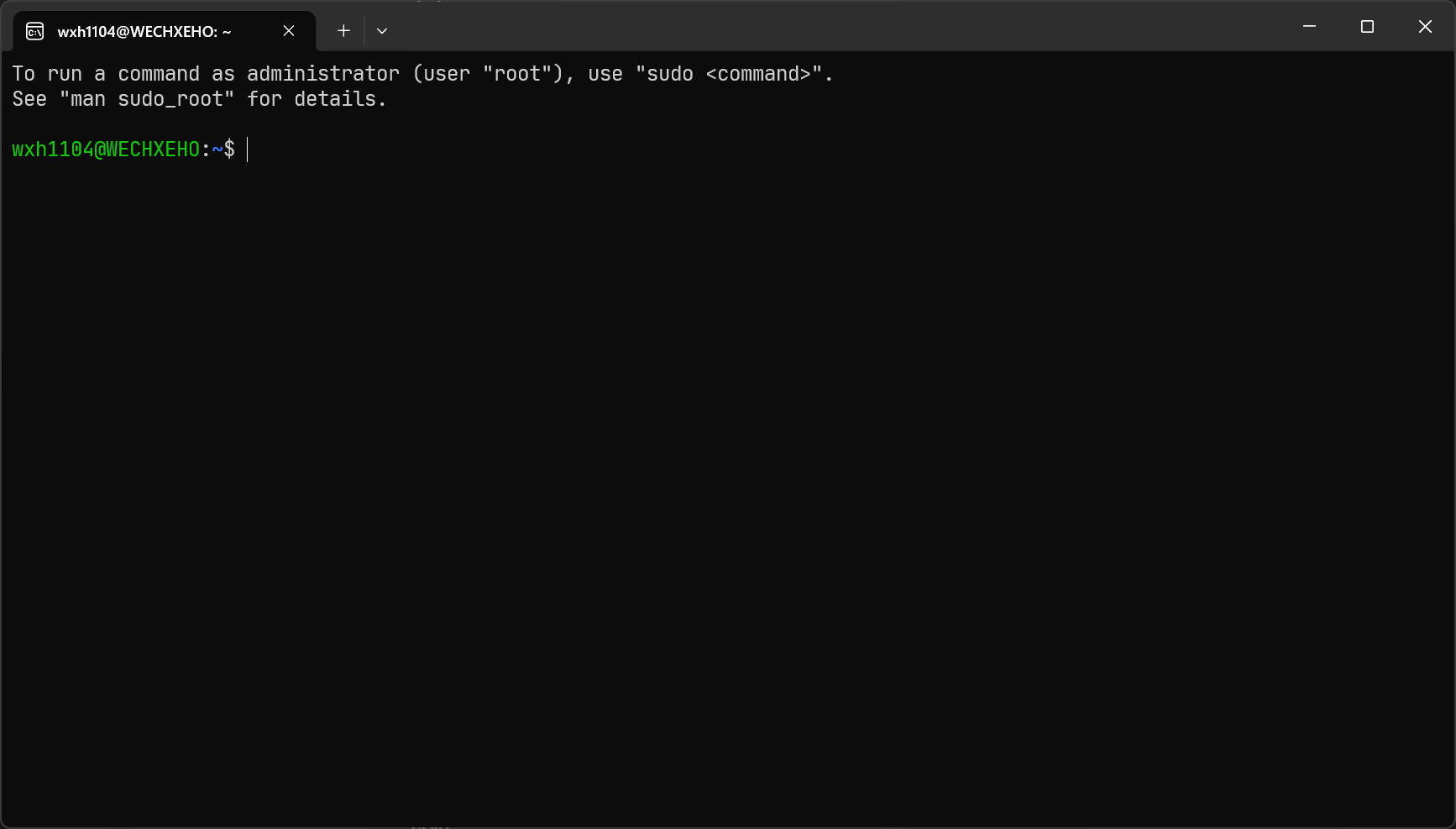
现在就到了 Linux 正式的命令行界面了:

但是 WSL 默认是安装到 C 盘,由于我的 C 盘空间紧张,遂准备将其迁移到 D 盘。
wsl --list --verbose
  NAME      STATE           VERSION
* Ubuntu    Stopped         2
现在我们要将这个系统连带着其中的数据打包到 D:\WSL\ubuntu.tar:
wsl --export Ubuntu D:\WSL\ubuntu.tar
正在导出,这可能需要几分钟时间。 (1549 MB)

操作成功完成。
打包完成后,相当于有了系统的完整备份,所以我们卸载原先 C 盘的系统:
wsl --unregister Ubuntu
正在注销。
操作成功完成。
然后再将备份导入路径 D:\WSL\Ubuntu。这将作为新子系统的根目录。
wsl --import Ubuntu D:\WSL\Ubuntu D:\WSL\ubuntu.tar
我们成功将 Linux 子系统迁移到了 D 盘。
此时会发现在 D:\WSL\Ubuntu 目录下有两个文件:
ext4.vhdx是一个虚拟硬盘镜像文件,换句话说就是整个 Ubuntu Linux 系统本体。运行时 WSL 会自动挂载ext4.vhdx并映射为 Linux 根目录/。shortcut.ico即 WSL 发行版图标,用于开始菜单的显示。
连接 VS Code
现在 Windows 的开始菜单可以看到 Ubuntu 了,只要点击就可以打开到子系统的用户根目录:
Tip
有趣的是,如果先在 Windows 中打开命令提示符,然后运行 wsl 命令,此时 Linux 命令行显示的当前目录是 /mnt/c/Users/<用户名>(或其他类似的路径)。
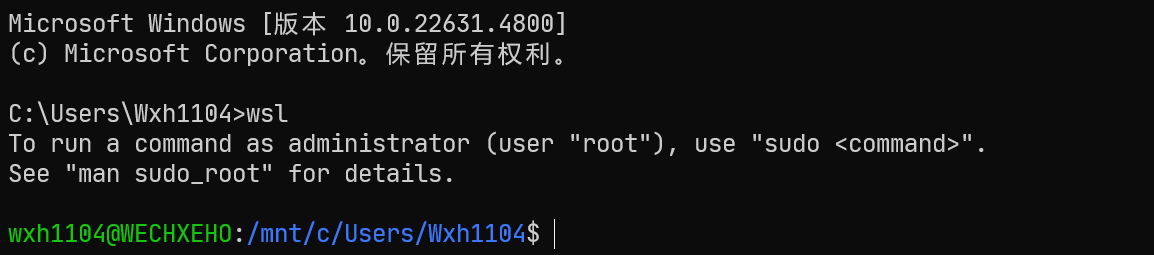
问了 AI 后才知道这是 WSL 的默认行为:继承 Windows 当前工作目录的路径,并将其转换为 WSL 内部的路径格式。
我是在 C:\Users\<用户名> 启动 WSL 的,WSL 会自动把 Windows 当前目录映射为 Linux 当前目录,相当于在根目录运行 cd /mnt/c/Users/Wxh1104。这算是 WSL 的一个便利特性,可以直接在 Windows 目录下执行 Linux 命令来处理跨平台文件。
为了能够继续在 Linux 下折腾新项目、写代码,还需要将 WSL 连接到 Windows 上安装的 VS Code。在用户根目录运行:
wxh1104@WECHXEHO:~$ code .
会弹出一个 VS Code 窗口,一番加载后显示如图:
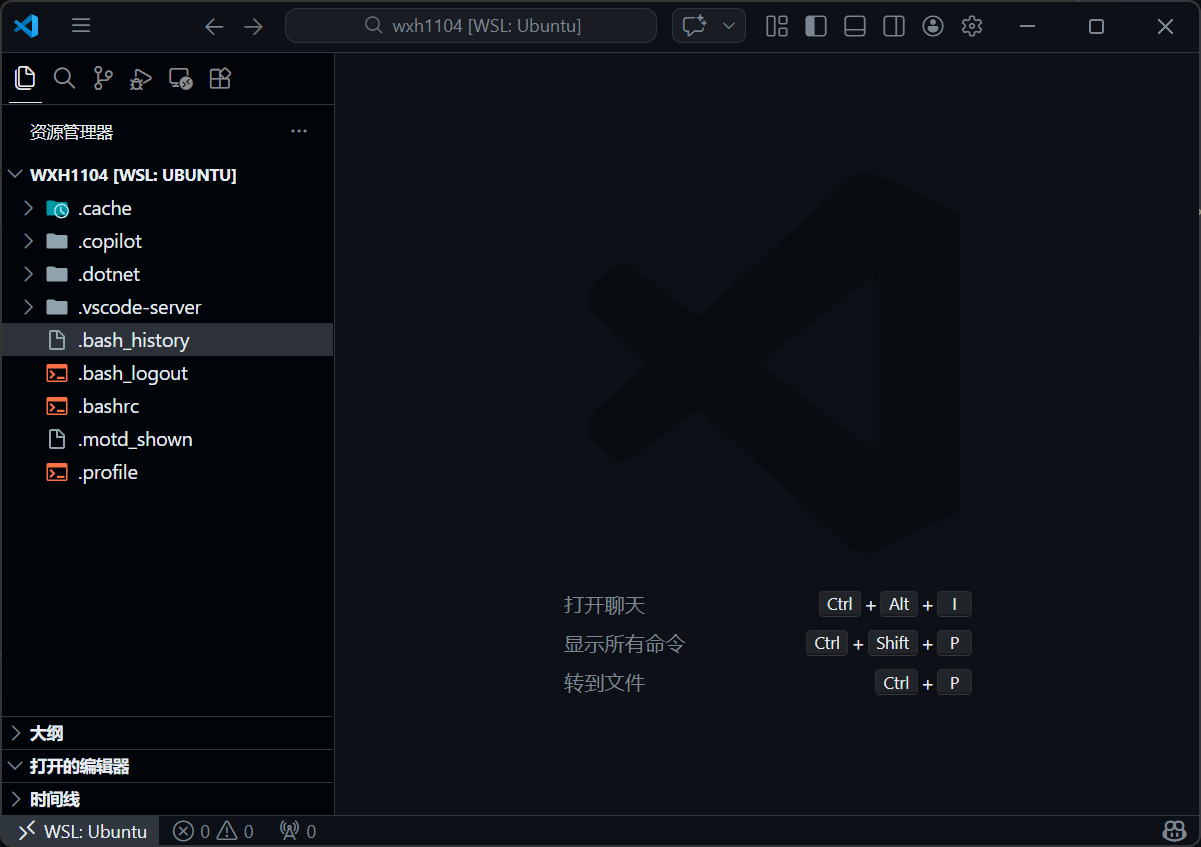
此时相当于我们把用户根目录作为 VS Code 的工作区了。后续我们可以在这样的图形界面进行一系列操作。
配置 Git
为了在 WSL 中丝滑地写项目,配置 Git 是必不可少的一环。但对于我来说还有一项特殊的需求:我需要同时使用多个 GitHub 账号,并在不同仓库(或不同提交)中选择不同身份。
这实际上是我个人的某些历史遗留问题,但此处不进行深究。
我问了下 ChatGPT,它建议我使用 SSH 来把提交推送到远程。下面是具体流程:
我的两个 GitHub 账号肯定对应不同的邮箱和用户名,首先在 WSL 里创建对应的两个 SSH key:
# 对账号 A
ssh-keygen -t ed25519 -C "<账号 A 邮箱>"
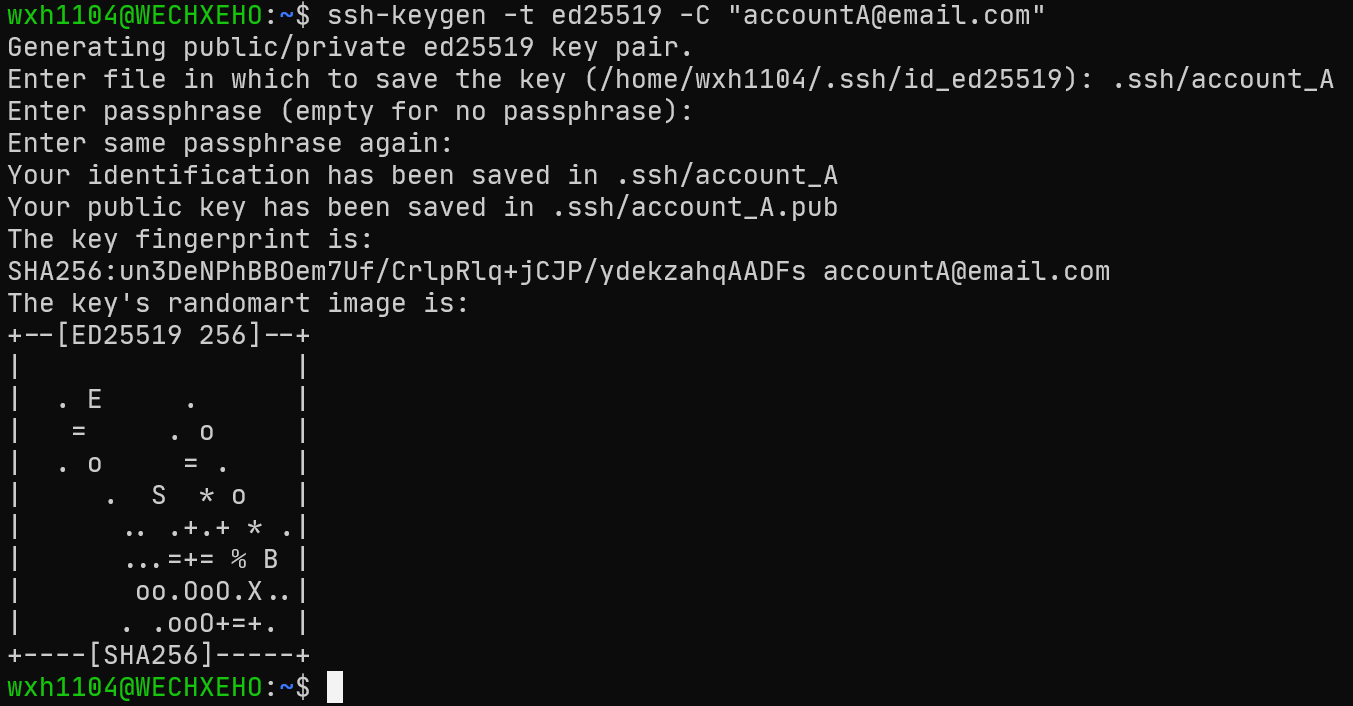
然后它会提示你输入文件保存路径,这里保存到 .ssh/account_A。
Tip
如果不填写文件路径,就会保存到显示的默认路径(/home/<用户名>/.ssh/id_ed25519)。
由于我们在用户根目录下进行的操作,所以文件路径写作 .ssh/account_A。
同样我们对第二个账号重复上述过程,并保存到 .ssh/account_B。
# 对账号 B
ssh-keygen -t ed25519 -C "<账号 B 邮箱>"
现在打开 VS Code 并连接 WSL,在 .ssh 目录下会看到多出四个文件:account_A account_A.pub account_B account_B.pub。
不带后缀的是私钥,必须要自己保管好;带 .pub 后缀的是公钥,后面还要用。
接着创建文件 ~/.ssh/config,并添加以下内容:
Host github-account-A
  HostName github.com
  User git
  IdentityFile ~/.ssh/account_A

Host github-account-B
  HostName github.com
  User git
  IdentityFile ~/.ssh/account_B
其中 IdentityFile 要匹配对应文件路径,github-account-A 是你为这个 SSH 连接起的名字,后面要用。
现在让我们回到 GitHub,分别登录两个账户,找到 Settings > SSH and GPG keys 并新建一个 SSH key,将对应的公钥文件(.pub 后缀)中的内容复制粘贴进去就行了。
为了测试能否正常连接 GitHub,执行:
ssh -T git@github.com
可能看到:
The authenticity of host 'github.com (20.205.243.166)' can't be established.
ED25519 key fingerprint is SHA256:+DiY3wvvV6TuJJhbpZisF/zLDA0zPMSvHdkr4UvCOqU.
This key is not known by any other names.
Are you sure you want to continue connecting (yes/no/[fingerprint])?
键入 yes,在 ~/.ssh 下会生成 known_hosts 和 known_hosts.old 文件。此时再运行上面的指令检查连接,如果出现下面的答复,表明已经配置成功:
Hi XXX! You've successfully authenticated, but GitHub does not provide shell access.
对于一个需要被推送到远程的本地仓库,如果这个仓库用账号A:
git remote set-url origin git@<你给 SSH 连接起的名字>:<GitHub 用户名>/<仓库名>.git
使用 Fastfetch
Fastfetch 是一个用来在终端显示系统信息的工具,可以看作是 neofetch 停止维护后的最佳平替。
为了适配 Ubuntu 22.04 及更高版本且保持版本最新,我使用官方推荐的 PPA 安装方式:
sudo add-apt-repository ppa:zhangsongcui3371/fastfetch
PPA publishes dbgsym, you may need to include 'main/debug' component
Repository: 'Types: deb
URIs: https://ppa.launchpadcontent.net/zhangsongcui3371/fastfetch/ubuntu/
Suites: noble
Components: main
'
Description:
Fastfetch is a neofetch-like tool for fetching system information and displaying them in a pretty way.

https://github.com/fastfetch-cli/fastfetch
More info: https://launchpad.net/~zhangsongcui3371/+archive/ubuntu/fastfetch
Adding repository.
Press [ENTER] to continue or Ctrl-c to cancel.
然后再进行安装:
sudo apt install fastfetch
待安装完成后就可以使用 fastfetch 命令了:
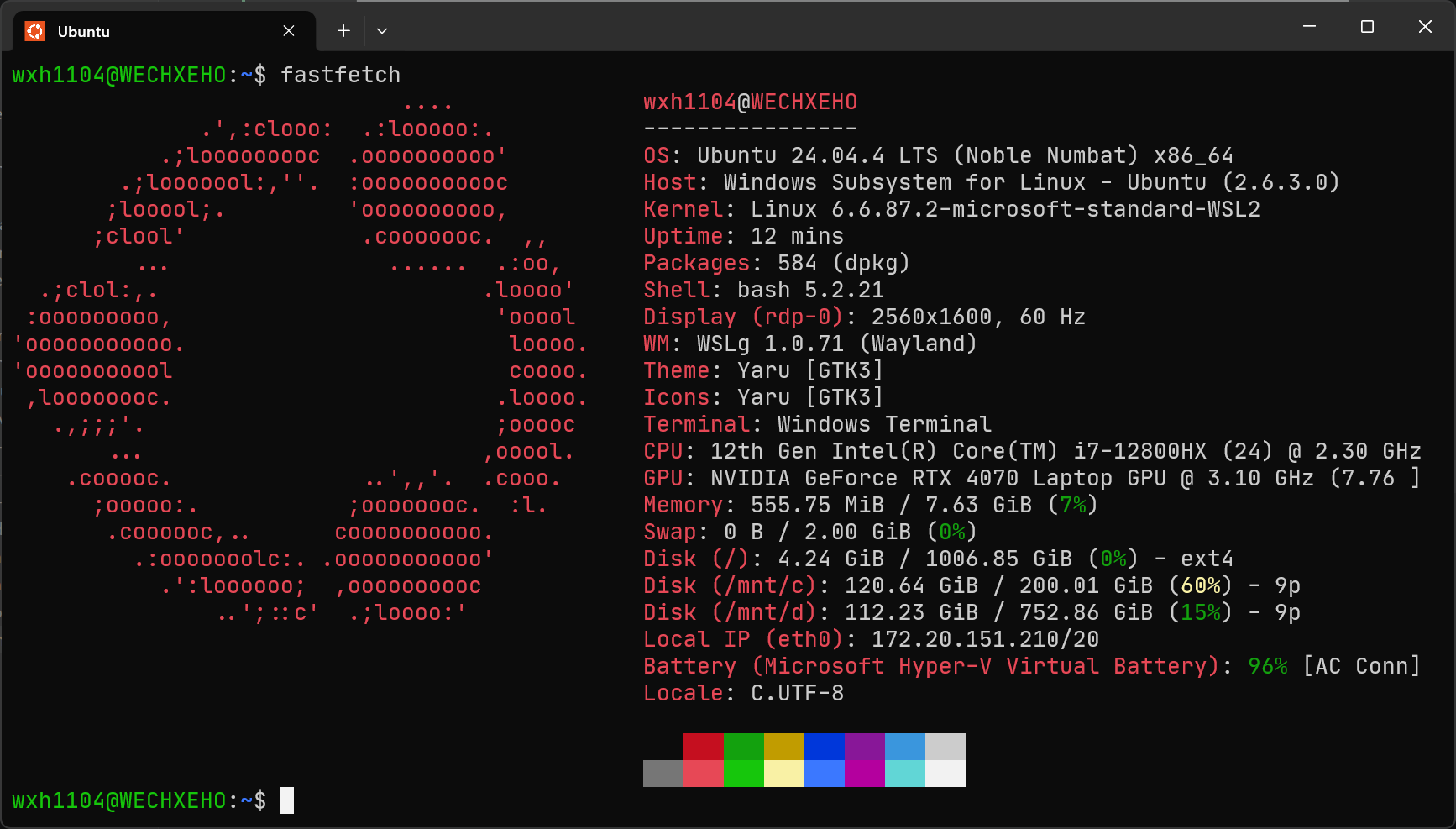
配置 Rust 开发环境
我平时写 Rust 比较多,因此需要配置对应的开发环境。这里我使用国内字节跳动推出的 RsProxy 服务安装工具链。
只需要按照官网上的指示一步步完成即可。
美化 Shell
首先查看默认 Shell:
echo $SHELL
结果是 /bin/bash。这表明 Bash 是当前的默认 Shell。但现在我们将使用 Zsh 替换掉它!
安装并配置 Zsh
Zsh 和 Bash 一样属于 Shell 的一种,但比 Bash 更好用;Zsh 完全兼容 Bash,且拥有极其丰富的插件、强大的自动补全以及自定义功能,可以大大提高我们使用 Linux 的效率。
安装 Zsh:
sudo apt-get install zsh
然后将其设为默认 Shell:
chsh -s /bin/zsh
现在重新打开终端界面,会看到 Zsh 提醒你进行初始配置:
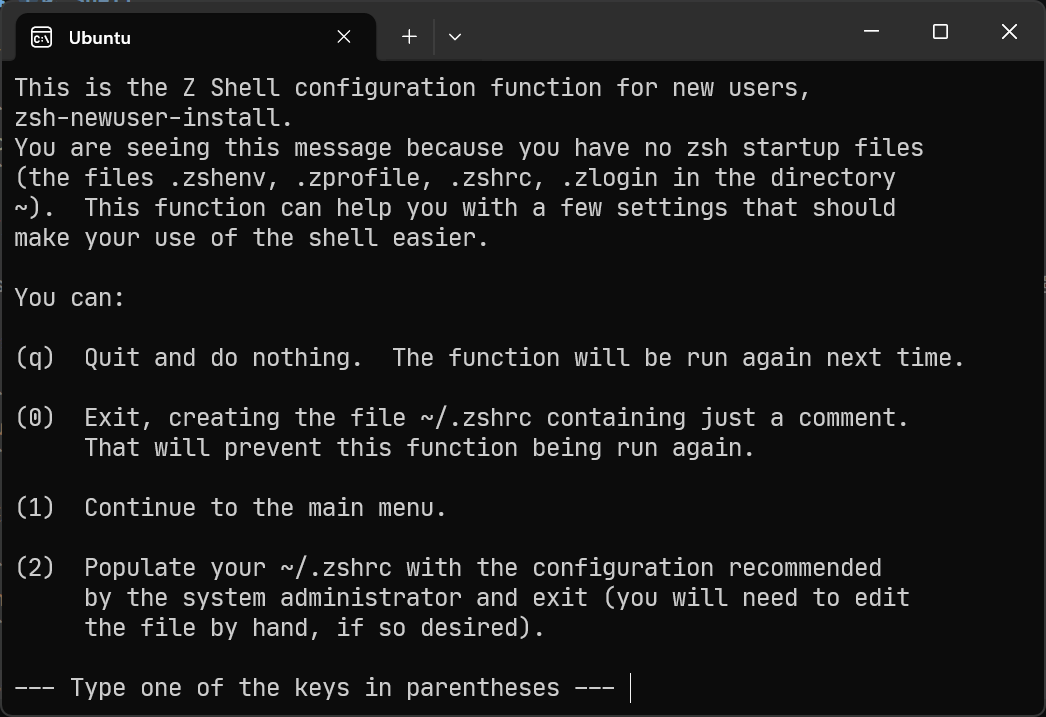
键入 1 以进入下一步配置。此时主菜单显示了以下配置项:
(1)  Configure settings for history, i.e. command lines remembered
     and saved by the shell.  (Recommended.)

(2)  Configure the new completion system.  (Recommended.)

(3)  Configure how keys behave when editing command lines.  (Recommended.)

(4)  Pick some of the more common shell options.  These are simple "on"
     or "off" switches controlling the shell's features.

(0)  Exit, creating a blank ~/.zshrc file.

(a)  Abort all settings and start from scratch.  Note this will overwrite
     any settings from zsh-newuser-install already in the startup file.
     It will not alter any of your other settings, however.

(q)  Quit and do nothing else.  The function will be run again next time.
键入 1 先对历史记录进行配置吧。目前有三个配置项:
# (1) Number of lines of history kept within the shell.
HISTSIZE=1000                                                                   (not yet saved)
# (2) File where history is saved.
HISTFILE=~/.histfile                                                            (not yet saved)
# (3) Number of lines of history to save to $HISTFILE.
SAVEHIST=1000                                                                   (not yet saved)
键入对应序号会编辑该值并进行保存。这里我们将第二项(历史命令保存的文件路径)修改为 ~/.zsh_history,第三项(实际写入文件的命令条数)改为 5000。
然后返回到主菜单,键入 2 配置自动补全。这里我们直接选开启默认补全即可。
再返回主菜单并键入 3 配置命令行编辑模式,配置项有 Emacs 模式(bindkey -e)和 Vi 模式(bindkey -v)两种,保持默认即可。
初始配置完成!成功退出了 zsh-newuser-install,Zsh 也已根据选择自动生成了 ~/.zshrc 配置文件。
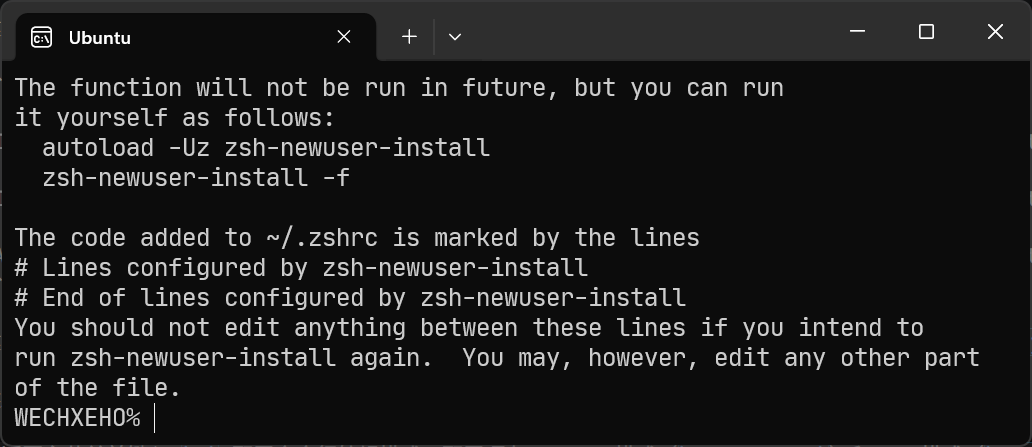
现在在 ~/.zshrc 当中已经有了 zsh-newuser-install 自动生成的配置了,像下面这样:
# Lines configured by zsh-newuser-install
...(自动生成的配置)...
# End of lines configured by zsh-newuser-install
不要修改这两行以及之间的内容,否则下次运行 zsh-newuser-install 时会被覆盖。
使用 Starship 美化 Zsh
想要进一步美化 Zsh,可以使用 Oh My Zsh 或 Starship。这里只对 Oh My Zsh 的安装进行简要记录,详细篇幅留给 Starship。
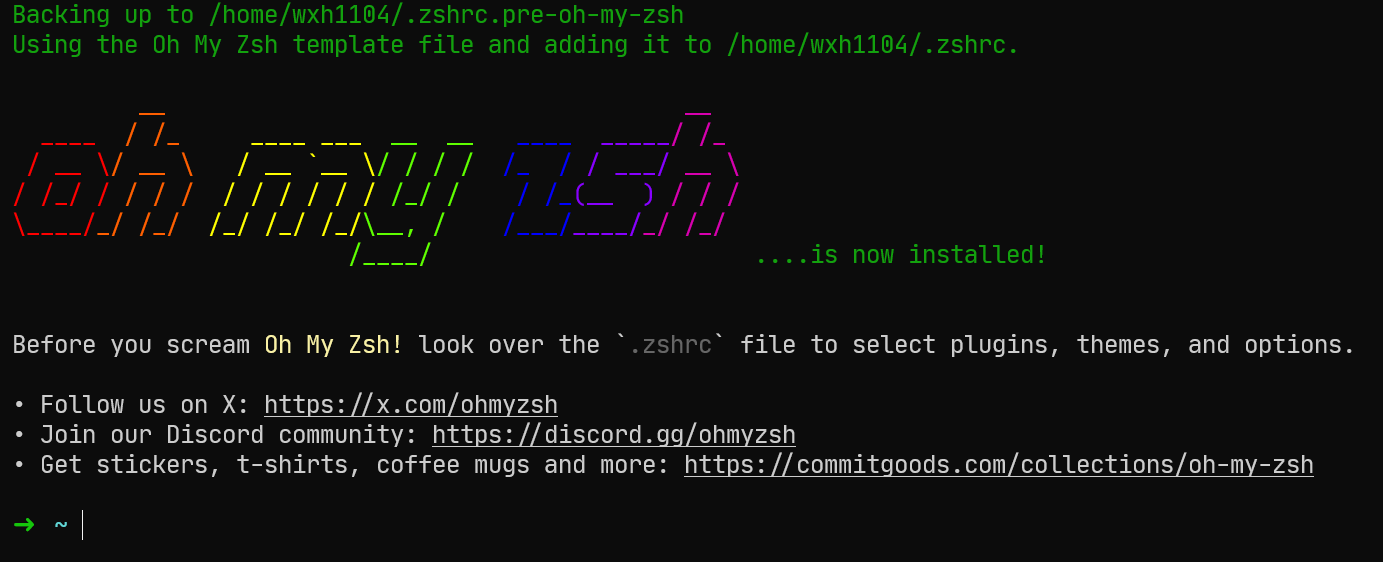
参考官方 Wiki 使用镜像站安装 Oh My Zsh:
sh -c "$(curl -fsSL https://install.ohmyz.sh)"
此时 Oh My Zsh 会提示是否要用它自己的模板覆写原先的 .zshrc,选择同意。现在原先的配置会备份到 ~/.zshrc.pre-oh-my-zsh。
首先下载最新 Starship:
curl -sS https://starship.rs/install.sh | sh
然后在已有的配置文件 .zshrc 中添加:
eval "$(starship init zsh)"
此时刷新终端,可以看到初始的 Starship 界面:
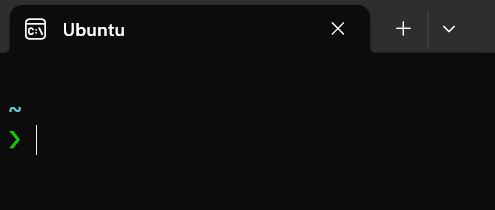
由于 Starship 前置需求是启用 Nerd Font,且我的终端现在采用的是 JetBrains Mono 字体,所以去官方页面先下载 JetBrainsMono Nerd Font。然后选择当中的 Nerd Font 安装(不要选 Nerd Font Mono,不然那些图标会显示得很小)。接着设置终端的外观字体:
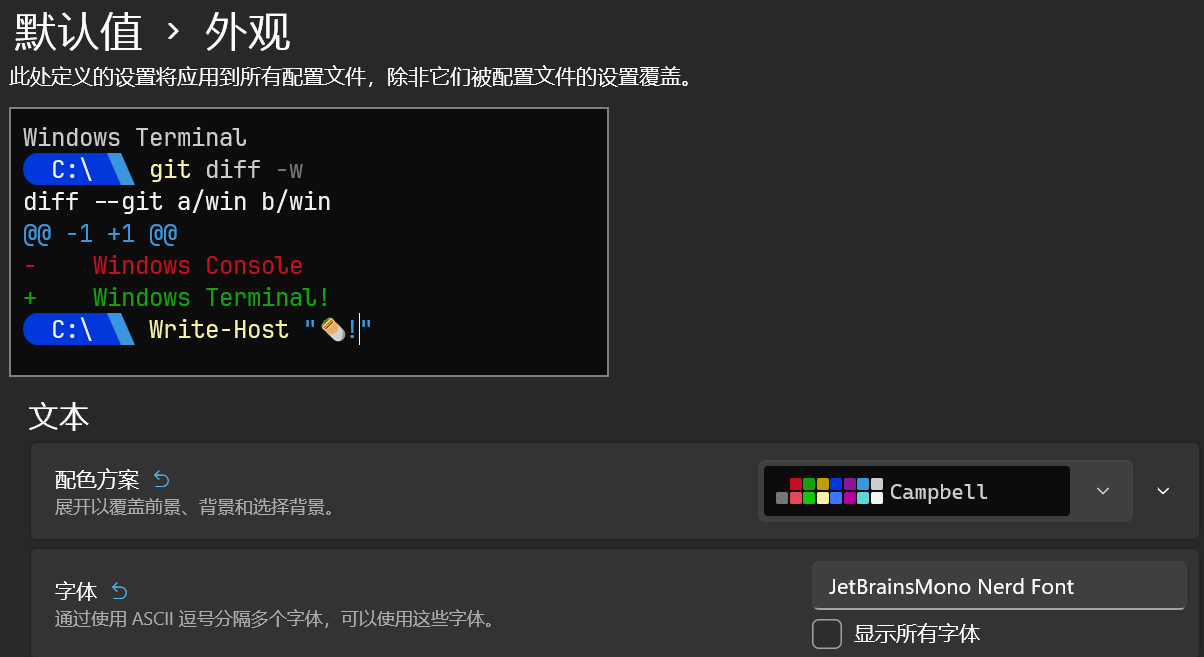
Starship 使用 TOML 格式配置。创建配置文件 ~/.starship/config.toml,然后设置环境变量以指定我们配置文件的路径。将以下内容添加到 .zshrc:
export STARSHIP_CONFIG="$HOME/.starship/config.toml"
默认情况下 Starship 会将警告和错误日志记录到文件 ~/.cache/starship/session_${STARSHIP_SESSION_KEY}.log 当中,但也可以设置新的环境变量来改变此路径,将以下内容添加到 .zshrc:
export STARSHIP_CACHE="$HOME/.starship/cache"
想要美化我们的提示符,可以使用社区已有的主题预设。我选择的是Catppuccin Powerline,直接将 TOML 文件内容复制到 ~/.starship/config.toml。
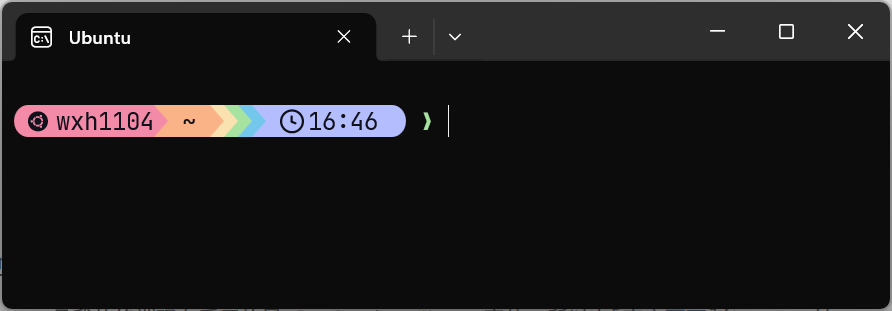
但是这个预设配置有某些不足之处,我稍微改良了下。以下是我改良后的版本:
"$schema" = 'https://starship.rs/config-schema.json'
format = """
[](red)\
$os\
$username\
[](bg:peach fg:red)\
$directory\
[](bg:yellow fg:peach)\
$git_branch\
$git_status\
[](fg:yellow bg:green)\
$c\
$cpp\
$rust\
$golang\
$php\
$java\
$kotlin\
$nodejs\
$bun\
$haskell\
$zig\
$python\
[](fg:green bg:sapphire)\
$conda\
[](fg:sapphire bg:lavender)\
$time\
[ ](fg:lavender)\
$cmd_duration\
$line_break\
$character"""
palette = 'catppuccin_mocha'
[os]
disabled = false
style = "bg:red fg:crust"
[os.symbols]
Windows = ""
Ubuntu = ""
SUSE = ""
Raspbian = ""
Mint = ""
Macos = ""
Manjaro = ""
Linux = ""
Gentoo = ""
Fedora = ""
Alpine = ""
Amazon = ""
Android = ""
AOSC = ""
Arch = ""
Artix = ""
CentOS = ""
Debian = ""
Redhat = ""
RedHatEnterprise = ""
[username]
show_always = true
style_user = "bg:red fg:crust"
style_root = "bg:red fg:crust"
format = '[ $user]($style)'
[directory]
style = "bg:peach fg:crust"
format = "[ $path ]($style)"
truncation_length = 3
truncation_symbol = "…/"
[directory.substitutions]
"Desktop" = " "
"Documents" = " "
"Downloads" = " "
"Music" = " "
"Pictures" = " "
"Videos" = " "
"Developer" = " "
".config" = " "
".local" = " "
".vscode" = " "
[git_branch]
symbol = ""
style = "bg:yellow"
format = '[[ $symbol $branch ](fg:crust bg:yellow)]($style)'
[git_status]
style = "bg:yellow"
format = '[[($all_status$ahead_behind )](fg:crust bg:yellow)]($style)'
[c]
symbol = ""
style = "bg:green"
format = '[[ $symbol( $version) ](fg:crust bg:green)]($style)'
[cpp]
symbol = ""
style = "bg:green"
format = '[[ $symbol( $version) ](fg:crust bg:green)]($style)'
[rust]
symbol = ""
style = "bg:green"
format = '[[ $symbol( $version) ](fg:crust bg:green)]($style)'
[golang]
symbol = ""
style = "bg:green"
format = '[[ $symbol( $version) ](fg:crust bg:green)]($style)'
[php]
symbol = ""
style = "bg:green"
format = '[[ $symbol( $version) ](fg:crust bg:green)]($style)'
[nodejs]
symbol = ""
style = "bg:green"
format = '[[ $symbol( $version) ](fg:crust bg:green)]($style)'
[bun]
symbol = ""
style = "bg:green"
format = '[[ $symbol( $version) ](fg:crust bg:green)]($style)'
[java]
symbol = ""
style = "bg:green"
format = '[[ $symbol( $version) ](fg:crust bg:green)]($style)'
[kotlin]
symbol = ""
style = "bg:green"
format = '[[ $symbol( $version) ](fg:crust bg:green)]($style)'
[haskell]
symbol = ""
style = "bg:green"
format = '[[ $symbol( $version) ](fg:crust bg:green)]($style)'
[zig]
symbol = ""
style = "bg:green"
format = '[[ $symbol( $version) ](fg:crust bg:green)]($style)'
[python]
symbol = ""
style = "bg:green"
format = '[[ $symbol( $version)(\(#$virtualenv\)) ](fg:crust bg:green)]($style)'
[docker_context]
symbol = ""
style = "bg:sapphire"
format = '[[ $symbol( $context) ](fg:crust bg:sapphire)]($style)'
[conda]
symbol = "🅒"
style = "fg:crust bg:sapphire"
format = '[$symbol$environment ]($style)'
ignore_base = false
[time]
disabled = false
time_format = "%R"
style = "bg:lavender"
format = '[[ $time](fg:crust bg:lavender)]($style)'
[line_break]
disabled = true
[character]
disabled = false
success_symbol = '[▶](bold fg:green)'
error_symbol = '[▶](bold fg:red)'
vimcmd_symbol = '[◀](bold fg:green)'
vimcmd_replace_one_symbol = '[◀](bold fg:lavender)'
vimcmd_replace_symbol = '[◀](bold fg:lavender)'
vimcmd_visual_symbol = '[◀](bold fg:yellow)'
[cmd_duration]
show_milliseconds = false
format = " in $duration "
style = "bg:lavender"
disabled = false
show_notifications = true
min_time_to_notify = 45000
[palettes.catppuccin_mocha]
rosewater = "#f5e0dc"
flamingo = "#f2cdcd"
pink = "#f5c2e7"
mauve = "#cba6f7"
red = "#f38ba8"
maroon = "#eba0ac"
peach = "#fab387"
yellow = "#f9e2af"
green = "#a6e3a1"
teal = "#94e2d5"
sky = "#89dceb"
sapphire = "#74c7ec"
blue = "#89b4fa"
lavender = "#b4befe"
text = "#cdd6f4"
subtext1 = "#bac2de"
subtext0 = "#a6adc8"
overlay2 = "#9399b2"
overlay1 = "#7f849c"
overlay0 = "#6c7086"
surface2 = "#585b70"
surface1 = "#45475a"
surface0 = "#313244"
base = "#1e1e2e"
mantle = "#181825"
crust = "#11111b"
[palettes.catppuccin_frappe]
rosewater = "#f2d5cf"
flamingo = "#eebebe"
pink = "#f4b8e4"
mauve = "#ca9ee6"
red = "#e78284"
maroon = "#ea999c"
peach = "#ef9f76"
yellow = "#e5c890"
green = "#a6d189"
teal = "#81c8be"
sky = "#99d1db"
sapphire = "#85c1dc"
blue = "#8caaee"
lavender = "#babbf1"
text = "#c6d0f5"
subtext1 = "#b5bfe2"
subtext0 = "#a5adce"
overlay2 = "#949cbb"
overlay1 = "#838ba7"
overlay0 = "#737994"
surface2 = "#626880"
surface1 = "#51576d"
surface0 = "#414559"
base = "#303446"
mantle = "#292c3c"
crust = "#232634"
[palettes.catppuccin_latte]
rosewater = "#dc8a78"
flamingo = "#dd7878"
pink = "#ea76cb"
mauve = "#8839ef"
red = "#d20f39"
maroon = "#e64553"
peach = "#fe640b"
yellow = "#df8e1d"
green = "#40a02b"
teal = "#179299"
sky = "#04a5e5"
sapphire = "#209fb5"
blue = "#1e66f5"
lavender = "#7287fd"
text = "#4c4f69"
subtext1 = "#5c5f77"
subtext0 = "#6c6f85"
overlay2 = "#7c7f93"
overlay1 = "#8c8fa1"
overlay0 = "#9ca0b0"
surface2 = "#acb0be"
surface1 = "#bcc0cc"
surface0 = "#ccd0da"
base = "#eff1f5"
mantle = "#e6e9ef"
crust = "#dce0e8"
[palettes.catppuccin_macchiato]
rosewater = "#f4dbd6"
flamingo = "#f0c6c6"
pink = "#f5bde6"
mauve = "#c6a0f6"
red = "#ed8796"
maroon = "#ee99a0"
peach = "#f5a97f"
yellow = "#eed49f"
green = "#a6da95"
teal = "#8bd5ca"
sky = "#91d7e3"
sapphire = "#7dc4e4"
blue = "#8aadf4"
lavender = "#b7bdf8"
text = "#cad3f5"
subtext1 = "#b8c0e0"
subtext0 = "#a5adcb"
overlay2 = "#939ab7"
overlay1 = "#8087a2"
overlay0 = "#6e738d"
surface2 = "#5b6078"
surface1 = "#494d64"
surface0 = "#363a4f"
base = "#24273a"
mantle = "#1e2030"
crust = "#181926"
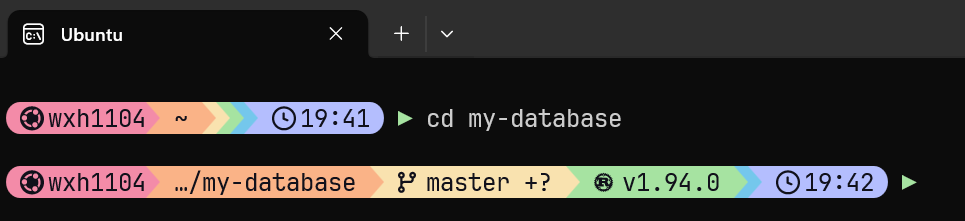
将 Bash 配置迁移到 Zsh
自从将美化后的 Zsh 作为默认终端,一切都似乎变得那么和谐与美好,直到我某次想要运行 cargo run 来运行我的 Rust 项目……当出现找不到命令的提示时,我知道又有麻烦了。
事实上,rustup 和 Cargo 这些 Rust 工具是我尚在使用 Bash 时期安装并配置的,关于它们的配置都在 .bashrc 上。由于新的 Zsh 没有这部分配置,所以自然会出现找不到命令的情况。
问了 AI 又自己排查下来,发现只有一条需要迁移:source "$HOME/.cargo/env"
把这条拷贝到 .zshrc 就可以在 Zsh 继续使用 Rust 工具了。